Best Screen Sharing Apps for Remote Teams
Looking for the best screen sharing apps for remote teams? Compare 10 top tools for speed, security, and price to find your fit.
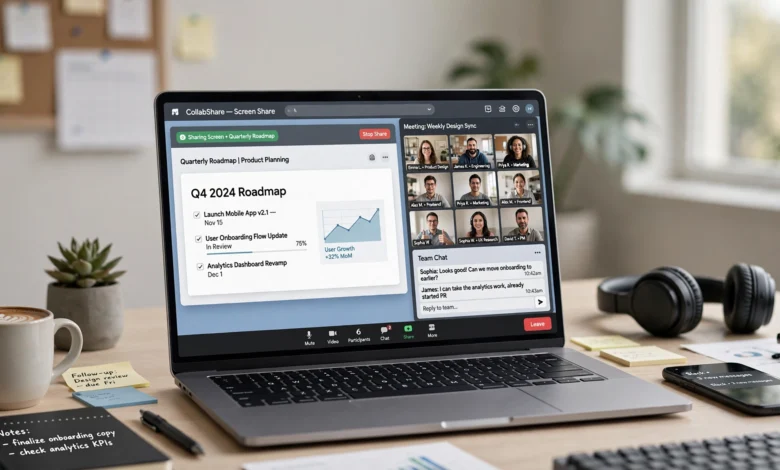
If you manage a distributed team, you already know that a laggy or clunky screen share can turn a five-minute check-in into a twenty-minute headache. Choosing the right screen sharing apps for remote teams isn’t just about picking whatever tool everyone already has installed. It’s about matching the software to how your team actually works: quick daily standups, client demos, IT troubleshooting, or long design reviews where every pixel matters.
This guide breaks down the best screen sharing apps for remote teams in 2026, based on features that actually affect day-to-day work: video quality, latency, security, ease of setup, and price. Some of these tools are built primarily for meetings and collaboration. Others lean toward remote access and IT support, where one person needs to take control of another person’s machine rather than just look at it. Knowing which category you need is half the battle.
We’ll also cover what to look for before you commit to a subscription, because the “best” tool really depends on your team size, budget, and whether you need remote control, recording, or just a clean way to show your screen during a call. By the end, you’ll have a shortlist that fits your workflow instead of a generic list of logos.
Let’s get into it.
What to Look For in Screen Sharing Software
Before comparing individual apps, it helps to know which features actually move the needle. Not every team needs the same thing, but these five factors come up again and again when evaluating screen sharing software.
1. Video Quality and Latency
Nobody wants to squint at a blurry spreadsheet or wait three seconds for a cursor to catch up. Look for tools that support at least 1080p resolution and adaptive bitrate, so quality holds up even on a shaky connection. If your team does technical work like coding or design reviews, lag matters more than most people assume. A half-second delay might not sound like much until you’re trying to walk someone through a live debugging session.
2. Security and Privacy Controls
Remote work means sensitive information crosses networks you don’t control. Good remote collaboration tools offer encrypted connections, the ability to restrict sharing to a single window instead of your whole desktop, and permission-based remote control (so nobody can take over your mouse without you approving it first). For regulated industries, look for compliance certifications like SOC 2 or HIPAA support. The WebRTC project, which powers many browser-based sharing tools, maintains open documentation on how these secure, peer-to-peer connections work under the hood, which is worth a look if you want to understand what’s actually happening behind the scenes.
3. Ease of Use
The best tool is the one your team will actually use without a training session. If sharing your screen takes more than two clicks, or if guests need to create an account just to view a shared window, you’ll get pushback. Browser-based options tend to win here since there’s nothing to install.
4. Collaboration Features
Screen sharing alone is often not enough. Look for annotation tools, built-in chat, session recording, and the ability for multiple people to share or control the screen at once. These extras matter most for design teams, sales demos, and training sessions where people need to point things out in real time.
5. Pricing and Scalability
Free tiers are fine for small teams, but check the fine print. Many free plans cap meeting length or the number of participants. If you’re scaling past ten or fifteen people, compare per-seat pricing carefully, since costs can climb fast with some vendors.

The Best Screen Sharing Apps for Remote Teams
Here’s our ranked breakdown of the top options, split roughly into meeting-first collaboration tools and remote-access tools built for IT support.
1. Zoom
Zoom remains one of the most widely used video conferencing and screen sharing tools for a reason. It’s reliable, works across every major operating system, and the screen sharing feature is dead simple: one click and you’re live. It supports sharing a specific application window, a whiteboard, or your entire desktop, and you can hand off sharing control to another participant mid-call without ending the meeting.
Best for: Teams that already run most of their meetings through Zoom and want screen sharing baked into the same tool.
Key features:
- One-click screen and window sharing
- Annotation tools during shared sessions
- Breakout rooms for smaller group work
- Cloud recording with searchable transcripts
Limitation: The free tier caps group meetings at 40 minutes, which can interrupt longer working sessions.
2. Google Meet
Google Meet is a strong pick if your team already lives in Google Workspace. It runs entirely in the browser, so there’s no software to install, and screen sharing works smoothly whether you’re presenting a tab, a window, or your full screen. Because it’s tied to Gmail and Calendar, scheduling and joining meetings feels almost frictionless.
Best for: Teams already using Gmail, Docs, and Google Calendar who want screen sharing without adding another app.
Key features:
- Browser-based, no download required
- Tight integration with Google Calendar and Docs
- Real-time captions
- Simple tab-sharing for presentations
Limitation: Annotation and remote control features are more limited compared to dedicated collaboration tools.
3. Microsoft Teams
Microsoft Teams pairs solid screen sharing with a full communication platform, including chat, file storage, and calling. Its deep integration with Outlook, OneDrive, and the rest of Office makes it a natural fit for organizations already standardized on Microsoft 365. You can share a specific window, give control to another participant, or present directly from PowerPoint Live, which keeps your slides crisp instead of compressed like a regular screen share.
Best for: Companies already using Microsoft 365 that want screen sharing tied into the same ecosystem as email and file storage.
Key features:
- PowerPoint Live for cleaner slide presentations
- Give and request control during a session
- Built-in whiteboard and file collaboration
- Meeting recording with automatic transcripts
Limitation: The interface can feel heavier than lighter-weight tools, especially for quick, informal calls.
4. Slack (Huddles)
Slack’s Huddles feature turned it from a pure messaging app into a genuinely useful remote collaboration tool. You can jump into a huddle from any channel or direct message and share your screen instantly, which is great for quick “let me show you” moments that don’t warrant scheduling a full meeting. It’s less suited to formal presentations, but for fast, informal problem-solving between teammates, it’s hard to beat.
Best for: Teams that already communicate primarily through Slack and want screen sharing without leaving the app.
Key features:
- Instant screen sharing from any channel
- Lightweight, no separate meeting link needed
- Drawing and annotation tools on shared screens
- Works well for quick pair-programming or design check-ins
Limitation: Not built for large webinars or client-facing presentations.
5. TeamViewer
TeamViewer shifts the conversation from meeting-based screen sharing to full remote desktop access. It’s a go-to for IT support teams because it allows unattended access, meaning a technician can connect to a machine even when no one is sitting at it. Cross-platform support covers Windows, macOS, Linux, Android, and iOS, and the connection is encrypted end-to-end, which matters when you’re troubleshooting on someone else’s device. You can read more about how the company approaches connection security directly on the TeamViewer security page, which lays out its encryption and compliance standards in detail.
Best for: IT teams and support desks that need to remotely control devices, not just view them.
Key features:
- Unattended remote access
- Cross-platform support across desktop and mobile
- File transfer during remote sessions
- Session recording for compliance or training
Limitation: Pricing for commercial use is steeper than most meeting-focused tools.
6. AnyDesk
AnyDesk is TeamViewer’s closest competitor and edges it out on raw speed. Its proprietary codec (DeskRT) keeps latency low even on slower connections, which makes it a favorite for gaming support, quick fixes, and situations where every millisecond of lag is noticeable. It’s lightweight, launches fast, and doesn’t require a full installation to start a session.
Best for: Fast, low-latency remote access when speed matters more than a full collaboration suite.
Key features:
- Low-latency, high-frame-rate remote sessions
- Lightweight client with minimal setup
- Session recording and file transfer
- Address book for frequently accessed devices
Limitation: Fewer built-in collaboration extras like whiteboards or chat compared to meeting-first platforms.
7. Chrome Remote Desktop
If your priority is free and simple, Chrome Remote Desktop is hard to beat. It’s a browser extension backed by Google, so there’s no separate app to manage, and it works across Windows, Mac, Linux, and Chromebooks. It won’t win any awards for advanced features, but for basic screen access between two trusted devices, it just works.
Best for: Individuals or small teams who need occasional remote access without paying for a full remote desktop suite.
Key features:
- Completely free
- Browser-based setup in minutes
- Cross-platform, including Chromebooks
- Simple PIN-based access for unattended connections
Limitation: Lacks the advanced admin controls and reporting that larger IT teams need.
8. CoScreen
CoScreen was built specifically for real-time, multi-person collaboration rather than one person presenting to a passive audience. Multiple participants can share windows simultaneously, side by side, and everyone can interact with any shared window as if it were on their own screen. That makes it especially useful for pair programming, design reviews, or any situation where more than one person needs hands-on control at the same time.
Best for: Engineering and design teams that need true multi-user, hands-on collaboration rather than one-way presenting.
Key features:
- Multiple simultaneous screen shares
- Shared control of any participant’s window
- Low-latency video built for technical work
- Works alongside Slack and other chat tools
Limitation: Smaller feature set outside of its core collaboration use case, so it’s not a full meeting platform replacement.
9. Zoho Assist
Zoho Assist splits its focus between remote support and unattended access, and it does both well. Support agents can view a customer’s screen or take full remote control, and the unattended access feature lets IT teams manage a fleet of machines without needing someone present at each one. It’s particularly popular with smaller support teams because pricing is more approachable than enterprise-heavy competitors.
Best for: Customer support and small IT teams that need reliable remote access without enterprise pricing.
Key features:
- Remote support and unattended access in one tool
- Multi-monitor navigation during sessions
- File transfer and session chat
- Mobile app support for on-the-go access
Limitation: Advanced enterprise reporting is less robust than dedicated enterprise remote support platforms.
10. Discord
Discord started as a gaming chat app, but its screen sharing feature (branded as “Go Live”) has quietly become popular with smaller, informal remote teams, especially in tech and creative fields. It’s free, fast, and voice channels make it easy to jump between casual conversation and screen sharing without the overhead of scheduling a formal meeting.
Best for: Small, informal teams or communities that want free, always-on voice and screen sharing.
Key features:
- Free “Go Live” screen sharing up to 4K for boosted servers
- Persistent voice channels for casual drop-in conversations
- Low barrier to entry, no meeting links needed
- Works well alongside async text chat
Limitation: Not designed for enterprise use, and lacks compliance features larger organizations require.
Meeting-First Tools vs. Remote Access Tools: Which Do You Need?
It’s worth pausing here because these ten apps actually fall into two different categories, and picking the wrong one leads to frustration.
Meeting-first collaboration tools (Zoom, Google Meet, Microsoft Teams, Slack, CoScreen, Discord) are built around presenting to a group during a live call. They’re ideal for standups, client demos, and team check-ins where the goal is showing something, not controlling someone else’s machine.
Remote access and support tools (TeamViewer, AnyDesk, Chrome Remote Desktop, Zoho Assist) are built for one person to view or control another person’s device, often without that person present. These are the right choice for IT support, troubleshooting, or managing unattended machines like servers or kiosks.
Some teams need both. A support desk might use Zoom for internal meetings and TeamViewer for customer troubleshooting. Don’t assume one tool has to cover every use case.
How to Choose the Right Screen Sharing App for Your Team
With ten solid options on the table, narrowing it down comes down to a few honest questions.
- How big is your team, and how often do you meet? Small teams with occasional calls can lean on free tiers. Larger teams meeting daily should budget for a paid plan that removes time limits and participant caps.
- Do you need remote control, or just viewing? If someone needs to actually operate another person’s computer, a remote desktop tool like TeamViewer or AnyDesk is a better fit than a meeting app.
- What’s your existing tech stack? If your company already runs on Microsoft 365 or Google Workspace, staying inside that ecosystem usually saves time and money over adding a separate tool.
- How sensitive is the data on your screen? Teams handling client data, financial records, or health information should prioritize tools with strong encryption and compliance certifications over ones that just look polished.
- Do you need recording and transcripts? If sessions need to be reviewed later or used for training, check whether recording is included in the plan you’re considering rather than sold as a costly add-on.
Tips for Better Screen Sharing Sessions
Picking the right software is only half the equation. A few habits make any of these tools work better in practice.
- Close unrelated tabs and notifications before sharing, especially if you’re sharing your full desktop instead of a single window.
- Share a specific application window rather than your whole screen whenever possible. It reduces distractions and keeps sensitive information out of view.
- Test your connection beforehand for important calls like client demos. A dropped or frozen share mid-presentation is hard to recover from gracefully.
- Use annotation tools sparingly so they highlight the point you’re making instead of cluttering the screen.
- Record sessions that matter, like onboarding walkthroughs or bug reports, so teammates in different time zones don’t have to sit through a live call to get the same information.
Frequently Asked Questions
What is the best free screen sharing app for remote teams? Google Meet and Chrome Remote Desktop are both strong free options. Google Meet works well for meeting-based collaboration, while Chrome Remote Desktop is better suited to basic remote access between devices.
Which screen sharing tool has the lowest latency? AnyDesk is generally considered one of the fastest options thanks to its proprietary DeskRT codec, which keeps sessions smooth even on weaker connections.
Is screen sharing software secure? Most reputable tools use encrypted connections and permission-based access, meaning no one can view or control your screen without your approval. Still, it’s worth checking each vendor’s specific security documentation, especially if you handle sensitive data.
Can I use screen sharing apps on mobile devices? Yes. Zoom, Microsoft Teams, and Google Meet all offer solid mobile screen sharing, though the experience is generally more limited than on desktop.
What’s the difference between screen sharing and remote desktop access? Screen sharing lets someone view your screen in real time. Remote desktop access, offered by tools like TeamViewer and AnyDesk, goes a step further by letting someone actually control your device remotely.
Conclusion
Choosing among the best screen sharing apps for remote teams really comes down to matching the tool to how your team works day to day. If your priority is running smooth meetings and client demos, Zoom, Google Meet, or Microsoft Teams will cover most of what you need, especially if you’re already using their broader ecosystems. If your team needs to actually control devices remotely for support or IT work, TeamViewer, AnyDesk, or Zoho Assist are built for that job specifically, while Chrome Remote Desktop offers a solid free alternative for lighter needs.
And for teams that want fast, informal collaboration without the overhead of scheduled meetings, Slack Huddles, CoScreen, and Discord all get the job done without unnecessary complexity. There’s no single “best” answer here, only the tool that fits your team’s size, budget, and the kind of work you’re actually trying to get done on a call.