What Is a Proxy Server and How to Use One
Proxy server basics made simple: how it works, the main types, and step-by-step setup instructions for browsers, Windows, and Mac.
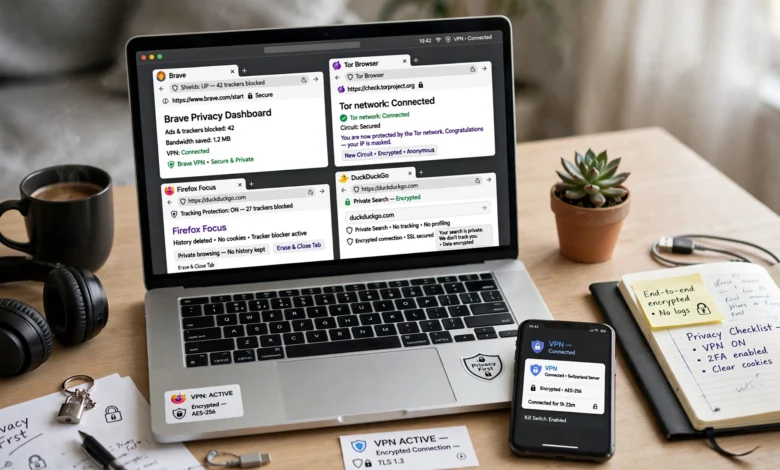
A proxy server sits between your device and the internet, quietly handling requests on your behalf. Instead of your computer talking directly to a website, it talks to the proxy first, and the proxy passes the request along. To the website, the traffic looks like it’s coming from the proxy, not from you. That one small shift changes a lot: it can hide your real IP address, help you get around content restrictions, speed up browsing through cached data, or give a business more control over what employees can access online.
Proxy servers aren’t new. Companies have used them for decades to manage network traffic and add a layer of security. What’s changed is who uses them and why. Today, everyday users rely on proxy servers for privacy, researchers use them to gather public data without getting blocked, and businesses use them to protect internal networks from outside threats.
This guide breaks down what a proxy server actually does, the different types you’ll come across, the real benefits and trade-offs, and exactly how to set one up on your own device. By the end, you’ll know whether a proxy is the right tool for what you’re trying to do, and how to get one running in a few minutes.
What Is a Proxy Server?
A proxy server is a computer system or piece of software that acts as a middleman between a user’s device and the wider internet. When you type a web address into your browser, that request normally travels straight to the website’s server. With a proxy in place, the request goes to the proxy first. The proxy then forwards it to the destination, receives the response, and sends it back to you.
From the website’s point of view, the request came from the proxy’s IP address, not yours. This is the core idea behind almost everything a proxy server does, whether that’s masking your location, filtering traffic, or caching content for faster load times.
How a Proxy Server Works
The process is straightforward once you break it into steps:
- You send a request (loading a webpage, downloading a file, streaming a video).
- The request routes to the proxy server instead of going directly to the destination.
- The proxy server evaluates the request based on its rules, such as blocking certain sites or checking a cache for existing data.
- The proxy forwards the request to the target server using its own IP address.
- The target server sends the response back to the proxy.
- The proxy passes that response along to you.
This round trip usually happens in a fraction of a second, so most users never notice a proxy is involved unless something is misconfigured. According to Fortinet’s cybersecurity glossary, a proxy server can also modify data in transit, add a layer of encryption, or block access based on IP address, depending on how it’s set up.
Types of Proxy Servers
Not all proxy servers do the same job. The right one depends on what you’re trying to accomplish, whether that’s staying anonymous, protecting a company network, or speeding up page loads.
Forward Proxy
A forward proxy sits in front of a client or group of clients and sends their requests out to the internet. This is the most common setup for individuals and organizations that want a single point of control over outgoing traffic. Schools and offices often use forward proxies to manage what employees or students can access.
Reverse Proxy
A reverse proxy works the opposite way. It sits in front of a web server (or a group of servers) and handles incoming requests from users. Instead of protecting the client, it protects the server, hiding its real location, distributing traffic across multiple machines, and reducing the load on any single server. Large websites rely on reverse proxies to stay fast and stable during traffic spikes.

Transparent Proxy
A transparent proxy doesn’t change your experience or hide the fact that a proxy is being used. It’s often deployed by organizations without requiring any setup on the user’s end, which makes it useful for content filtering in schools, libraries, or offices.
Anonymous Proxy
An anonymous proxy hides your real IP address but still identifies itself as a proxy to the websites you visit. It offers a decent level of privacy, though your internet service provider or other parties may still be able to trace your activity in certain situations.
High Anonymity Proxy
Sometimes called an elite proxy, this type hides both your IP address and the fact that a proxy is being used at all. Your traffic looks like it’s coming from a regular user, which makes it the strongest option for privacy among standard proxy types.
Residential Proxy
A residential proxy routes your traffic through IP addresses tied to real homes and ISPs. This makes requests look like they’re coming from an ordinary residential user rather than a data center, which is why residential proxies are popular for tasks like price monitoring or ad verification.
Datacenter Proxy
Unlike residential proxies, datacenter proxies aren’t linked to an internet service provider. They’re generated in bulk from cloud servers, making them faster and cheaper, though easier for some websites to detect and block.
SSL Proxy
An SSL proxy decrypts and re-encrypts traffic between the client and server, giving organizations visibility into encrypted connections without exposing the data to outside threats. This is typically used by businesses that need to inspect traffic for security purposes while keeping it protected in transit.
Why Use a Proxy Server? The Main Benefits
People turn to a proxy server for a handful of practical reasons:
- Privacy protection – Masking your real IP address makes it harder for websites, advertisers, and third parties to track your location and browsing habits.
- Access to restricted content – A proxy located in a different region can let you reach content or services that are blocked or unavailable where you are.
- Faster browsing through caching – Some proxies store copies of frequently requested pages, so repeat visits load faster and use less bandwidth.
- Network security – Businesses use proxies to filter out malicious traffic, block harmful websites, and add a buffer between internal systems and the open internet.
- Traffic control – Parents and employers use proxies to monitor or restrict internet usage on shared networks.
- Load balancing – Reverse proxies spread incoming requests across multiple servers, keeping websites responsive even under heavy traffic.
- Anonymous data collection – Researchers and businesses use proxies to gather public web data without getting their real IP address flagged or blocked.
Proxy Server vs. VPN: What’s the Difference?
People often confuse a proxy server with a VPN, and while they share some overlap, they aren’t interchangeable.
A proxy typically works at the application level, meaning it reroutes traffic from a specific browser or program, not your entire device. It usually doesn’t encrypt your data, so while your IP address might be hidden, your traffic itself could still be visible to your internet provider or anyone monitoring the network.
A VPN, by contrast, encrypts all the traffic leaving your device, regardless of which app or browser it comes from. This gives you a more complete layer of protection but often comes at the cost of speed, since encryption takes extra processing time.
If you just need to change your apparent location for a browser task or bypass a simple content block, a proxy is usually enough. If you’re handling sensitive data or want full-device protection, a VPN is the safer choice.
How to Use a Proxy Server: Step-by-Step
Setting up a proxy server is simpler than most people expect. Here’s how to configure one across the most common platforms.
Setting Up a Proxy on Windows
- Open Settings and go to Network & Internet.
- Click Proxy in the left sidebar.
- Under “Manual proxy setup,” toggle Use a proxy server to On.
- Enter the proxy’s IP address and port number, provided by your proxy service.
- Click Save to apply the changes.
Setting Up a Proxy on Mac
- Open System Settings and select Network.
- Choose your active connection (Wi-Fi or Ethernet) and click Details.
- Go to the Proxies tab.
- Select the proxy type you need (such as Web Proxy HTTP or Secure Web Proxy HTTPS).
- Enter the server address and port, then click OK and Apply.
Setting Up a Proxy in Your Browser
Most browsers, including Chrome and Firefox, let you configure a proxy directly or through an extension:
- Open your browser’s settings menu.
- Search for “proxy” in the settings search bar.
- This usually opens your operating system’s network proxy settings (since most browsers rely on system-level configuration).
- Alternatively, install a proxy extension, enter your proxy details, and enable it with one click.
Setting Up a Proxy on Mobile Devices
On both Android and iOS, proxy settings live inside your Wi-Fi configuration:
- Go to Settings and select Wi-Fi.
- Tap the network you’re connected to.
- Look for Proxy or HTTP Proxy settings.
- Switch it to Manual and enter the server address and port.
- Save the changes to activate the proxy for that network.
Once set up, you can confirm it’s working by checking your IP address through any “what is my IP” tool. If it shows a different location or address than your actual one, the proxy is active.
Risks and Limitations to Know Before You Use One
A proxy server isn’t a complete security solution, and it’s worth understanding the trade-offs before relying on one.
- Limited encryption – Many proxies don’t encrypt your traffic, which means your data could still be visible to your ISP or anyone monitoring the connection.
- Free proxies carry risk – Free proxy services sometimes log user activity, inject ads, or even sell data to third parties. If you’re using one for anything sensitive, stick with a reputable, paid provider.
- Speed trade-offs – Routing traffic through an extra server can slow down your connection, especially with shared or overloaded proxies.
- Not a full privacy solution – A proxy hides your IP address but doesn’t protect against browser fingerprinting, cookies, or other tracking methods.
- Compatibility issues – Some proxies only work with specific applications or browsers, so they won’t cover all your internet traffic the way a VPN would.
According to AVG’s overview of proxy servers, proxies are useful for firewall protection and shared network connections, but they work best when paired with other security tools rather than used as a standalone solution.
How to Choose the Right Proxy Server
If you’re picking a proxy server for personal or business use, a few factors matter more than others:
- Purpose – Decide whether you need it for privacy, content access, security, or data collection, since different proxy types are built for different jobs.
- Speed and reliability – Datacenter proxies tend to be faster, while residential proxies are harder to detect but often slower.
- Reputation of the provider – Avoid free or unknown services for anything involving personal information. Look for providers with clear privacy policies and a track record.
- Location options – If you need to appear in a specific country or region, confirm the provider offers servers there.
- Support for your use case – Some proxies work only with browsers, while others support full applications or specific protocols like HTTPS or SOCKS5.
Conclusion
A proxy server is a simple but effective tool that stands between your device and the internet, rerouting your requests through a different IP address to add privacy, control, or speed to your browsing. Whether you’re dealing with a forward proxy at the office, a reverse proxy protecting a website’s servers, or a residential proxy for gathering public data, the underlying idea stays the same: your traffic goes through a middleman before reaching its destination.
Proxies aren’t a substitute for full encryption or a complete security setup, but for tasks like accessing region-locked content, managing network traffic, or adding a layer of anonymity, they remain one of the easiest tools to set up and use. With the step-by-step instructions above, getting one running on your device should only take a few minutes.