How to Check If Your Email Was Hacked
How to check if your email was hacked using 7 warning signs, free breach tools, and a step-by-step recovery plan you can start today.
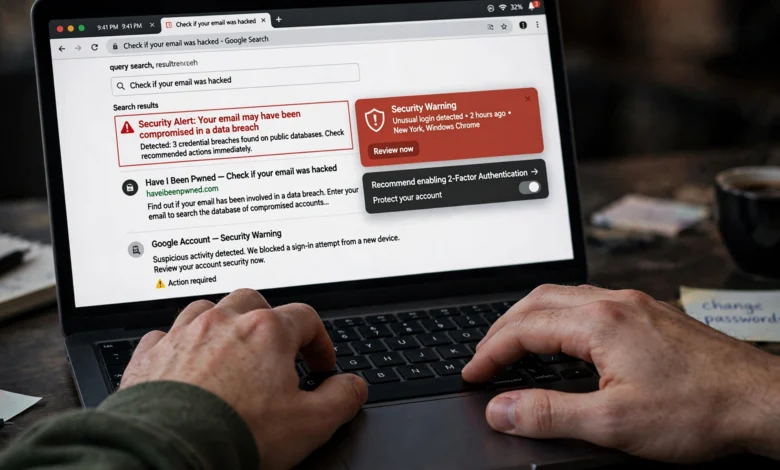
How to check if your email was hacked is a question more people are asking every year, and for good reason. Your inbox isn’t just where messages sit. It’s the master key to your bank, your social media, your work accounts, and nearly everything else tied to your name online.
When someone gets into it, they don’t always announce themselves. Sometimes they lurk quietly, reading your messages and waiting for the right moment to strike. Other times they lock you out within minutes, changing your password and recovery details before you even notice something’s wrong.
The tricky part is that a hacked email account doesn’t always look dramatic. It might just be a missing message, a login alert from a city you’ve never visited, or a friend asking why you sent them a weird link. These small clues matter, and knowing what to look for can be the difference between catching an intrusion early and dealing with a much bigger mess later, including identity theft or drained bank accounts.
This guide walks you through the exact signs that point to a compromised email account, the tools you can use to verify it, and the steps to take right away if you confirm your suspicions. Whether you use Gmail, Outlook, Yahoo, or something else, the same core principles apply.
Why Your Email Is a Prime Target for Hackers
Before getting into the warning signs, it helps to understand why email accounts are such valuable targets. Most people don’t think of their inbox as a security asset, but attackers absolutely do.
Your email address is usually tied to:
- Password reset links for your banking and financial apps
- Your social media accounts and messaging apps
- Online shopping accounts with stored payment details
- Work systems and cloud storage
- Two-factor authentication backups for other services
Once someone controls your inbox, they can request password resets across dozens of platforms and intercept the confirmation emails before you ever see them. That’s why security researchers often call email the “master key” to your digital identity. A single compromised email account can cascade into a full identity theft situation within hours.
7 Signs Your Email Was Hacked
If you’re wondering whether your account has been breached, start by reviewing these warning signs. You don’t need all of them to be true at once. Even one or two should be enough to prompt immediate action.
1. You Can’t Log In With Your Correct Password
This is usually the most obvious sign. If your password suddenly stops working and you’re confident you typed it correctly, an attacker may have already changed it. Modern attackers move fast. As soon as they gain access, they often update the password, phone number, and recovery email in the same session, which locks you out before you can react.
2. You Receive Unexpected Security Alerts
Most major email providers, including Gmail, Outlook, and Yahoo, send automatic notifications when something changes on your account. Pay close attention to alerts like:

- “New device signed in”
- “Your password was changed”
- “Two-factor authentication was disabled”
- “Recovery email or phone number updated”
- “Someone tried to sign in from a new location”
If you get one of these and you didn’t make the change yourself, treat it as a real threat, not spam. Don’t click any links inside the alert email itself. Instead, open your email provider’s website directly and check your account activity from there.
3. Friends or Contacts Report Strange Messages From You
If people in your contact list start messaging you asking why you sent them a suspicious link or a strange request for money, that’s a strong indicator your email account was hacked. Attackers frequently use compromised accounts to send phishing messages to everyone in the address book, since messages from a trusted contact are far more likely to be opened.
4. You Find Sent Emails You Never Wrote
Check your Sent folder regularly. If you spot messages you don’t remember writing, especially ones containing links or attachments, someone else has likely been using your account. Some attackers also delete evidence from the Sent folder afterward, so an unusually empty or scrubbed folder can be just as suspicious as one full of strange messages.
5. Emails Are Missing or Rules Have Changed
Look for emails and folders that seem to have disappeared, or check whether new filters or forwarding rules have appeared that you didn’t set up. A common tactic among attackers is to create a hidden forwarding rule that quietly sends copies of your incoming mail, including password reset emails, to an external address. This lets them monitor your account long after the initial breach without you noticing anything obviously wrong.
To check this manually:
- Open your email settings menu
- Look for “Filters and Forwarding” or “Rules”
- Review every rule listed, even ones that look old or familiar
- Delete anything you don’t recognize or didn’t create yourself
6. You Get Login Alerts From Unfamiliar Locations or Devices
Most providers keep a log of recent account activity, including the device, browser, and approximate location of each login. If you see a session from a country you’ve never visited or a device you don’t own, that’s a clear red flag. You can usually find this under a section labeled “Security” or “Recent Activity” in your account settings.
7. You Receive Password Reset Emails You Didn’t Request
If you’re suddenly getting reset emails from services you use, like your bank, streaming accounts, or shopping sites, without requesting them yourself, someone may be using your hacked email to try breaking into your other accounts. This is one of the clearest signs that your inbox has become the entry point for a much wider attack.
How to Verify If Your Email Was Hacked
Spotting warning signs is a good start, but you can also confirm a breach using a few reliable tools and checks.
Use a Data Breach Checker
One of the simplest ways to check if your email was hacked is to see whether it has appeared in a known data breach. The free tool Have I Been Pwned lets you enter your email address and instantly see whether it has shown up in any publicly known breaches, along with which sites were affected and what type of data was exposed, such as passwords, phone numbers, or physical addresses.
This won’t tell you whether your account is being actively used by someone else right now, but it will tell you whether your credentials are floating around somewhere they shouldn’t be, which is often how the initial compromise happens in the first place.
Review Your Account’s Login History
Every major provider offers some form of activity log:
- Gmail shows this under “Security” then “Your devices” and “Recent security activity”
- Outlook has an “Sign-in activity” section under account security
- Yahoo Mail lists recent activity under “Account security”
Look through the list carefully. Unfamiliar IP addresses, unusual browsers, or logins at odd hours you can’t explain are all worth investigating further.
Check Connected Apps and Devices
Over time, most people connect dozens of third-party apps and browser extensions to their email account for convenience. Some of these permissions are outdated or overly broad, which creates an easy backdoor for attackers if that third-party app itself gets compromised. Go through your connected apps list and revoke access for anything you no longer use or don’t recognize.
Look at Your Recovery Options
Confirm that your recovery phone number and backup email address are still correct. If either one has been silently changed, it’s often a sign that someone already has access and is trying to lock you out permanently, since they control where your reset codes get sent.
What to Do If Your Email Was Hacked
If you’ve confirmed or strongly suspect your account is compromised, don’t wait. Speed matters here, and the order in which you act matters too. Doing things out of sequence can let an attacker walk right back in after you think you’ve fixed the problem.
Step 1: Change Your Password Immediately
If you can still log in, change your password right away, before doing anything else. Choose a long, unique password you haven’t used anywhere else. Avoid anything based on personal details like birthdays or pet names. A password manager can generate and store a strong one for you so you never have to reuse credentials across sites again.
Step 2: Enable Two-Factor Authentication
If you haven’t already turned on two-factor authentication (2FA), do it now. This adds a second layer of verification, usually a code sent to your phone or generated by an authenticator app, so a stolen password alone isn’t enough to get back in. According to the Cybersecurity and Infrastructure Security Agency (CISA), enabling multi-factor authentication is one of the most effective steps individuals can take to prevent account takeovers.
Step 3: Remove Unfamiliar Devices and Sessions
Go into your account’s security settings and sign out of every device and session you don’t recognize. Most providers let you do this with a single “sign out of all other sessions” option, which is the fastest way to cut off an attacker’s access immediately.
Step 4: Check and Remove Forwarding Rules and Filters
Go back to your filters and forwarding settings and delete anything suspicious. This step is easy to overlook, but skipping it means an attacker could still be receiving copies of your emails even after you’ve changed your password and kicked them off active sessions.
Step 5: Update Your Recovery Information
Make sure your recovery email and phone number belong to you and are current. If either was changed by the attacker, update it back to something only you control.
Step 6: Warn Your Contacts
If your account was used to send phishing messages, let your contacts know so they don’t click on anything sent from your address during the breach window. A short message explaining what happened goes a long way toward preventing the damage from spreading further.
Step 7: Check Your Other Accounts
Since email often controls password resets across other platforms, review your bank accounts, social media, and any other important services for signs of unauthorized activity. Change passwords on any account that shares a password with your compromised email, and consider using a monitoring service if you’re worried about identity theft.
How to Prevent Your Email From Being Hacked Again
Recovering your account is only half the job. Once you’re back in control, it’s worth tightening things up so the same thing doesn’t happen twice.
- Use a unique, strong password for your email that isn’t reused anywhere else
- Turn on two-factor authentication using an authenticator app rather than SMS when possible, since SIM-swapping can intercept text codes
- Be cautious with phishing emails, especially ones creating urgency or asking you to click a link and enter your password
- Review connected apps periodically and remove ones you no longer use
- Keep your recovery information current so you can regain access quickly if something does go wrong
- Avoid logging into email on public Wi-Fi or shared computers without a VPN or trusted network
- Update your device software regularly, since outdated systems are more vulnerable to malware that can capture login credentials
Conclusion
Knowing how to check if your email was hacked comes down to paying attention to the small details: unexpected login alerts, strange sent messages, missing emails, unfamiliar devices, and password reset requests you never made.Since your inbox controls access to nearly everything else in your digital life, treating it as your most important account to protect is one of the simplest and most effective habits you can build.
If you notice even one or two of these signs, verify your account activity, run your address through a breach checker like Have I Been Pwned, and act quickly by changing your password, enabling two-factor authentication, and removing any suspicious forwarding rules or connected apps.