Best DNS Servers: 10 Proven Picks for Faster, Safer Browsing in 2026
Best DNS servers compared for speed, privacy, and reliability. Find the right free public DNS to fix slow load times today.
If your web pages take a beat too long to load, or a site occasionally refuses to open at all, the problem might not be your internet plan. It could be your DNS server. Every time you type a website address, your device asks a DNS server to translate that name into an IP address, and the speed of that lookup shapes how snappy your entire browsing experience feels. Most people never touch this setting because their internet provider assigns a default DNS server automatically, but that default is rarely the fastest or safest option available.
Switching to one of the best DNS servers for faster browsing is one of the simplest changes you can make to your network setup, and it costs nothing. In this article, we’ll walk through what DNS actually does, why some servers outperform others, and a rundown of the top DNS providers worth trying in 2026.
We’ll also cover how to choose the right one for your situation and how to switch in a few minutes, whether you’re on Windows, Mac, or your home router. By the end, you’ll know exactly which DNS server fits your needs, whether that’s raw speed, stronger privacy, or built-in protection from malicious sites.
What Is a DNS Server and Why Does It Matter?
DNS stands for Domain Name System. Think of it as the internet’s phone book. Humans type words like “wikipedia.org,” but computers communicate using numerical IP addresses. A DNS server is the middleman that looks up the address behind the name so your browser knows where to send the request.
Here’s the thing most people miss: not all DNS servers respond at the same speed, and not all of them are equally trustworthy. Some factors that separate a good DNS server from a mediocre one include:
- Response time – how quickly the server resolves a domain name into an IP address
- Server locations – more data centers around the world usually mean a shorter physical distance to your request
- Uptime and reliability – a DNS server that goes down, even briefly, can make websites appear broken
- Security features – protection against phishing domains, malware, and DNS hijacking
- Privacy policy – whether the provider logs your browsing activity or sells that data
When your ISP’s default DNS server is slow or overloaded, every single site you visit inherits that delay before the page even starts loading. Switching to a faster, more reliable DNS server removes that bottleneck at the source.
How DNS Speed Affects Your Browsing Experience
It’s easy to underestimate how much DNS resolution time adds up. A single webpage often pulls resources from a dozen or more different domains: the main site, a content delivery network, ad scripts, fonts, analytics tools, and so on. If each of those lookups takes an extra 50 to 100 milliseconds because of a sluggish DNS server, that delay compounds across an entire browsing session.
This is especially noticeable on:
- Mobile networks, where latency is already higher than on wired connections
- Streaming services, where a slow DNS lookup can delay the initial buffering
- Gaming, where connecting to game servers quickly matters
- Households with multiple devices, where DNS requests from several devices compete for the same resolver
Choosing one of the best DNS servers for faster browsing won’t magically double your internet speed, since your bandwidth is still capped by your ISP plan. What it will do is shave off the small, repeated delays that happen before a page even starts to render, which is often the difference between a site that feels instant and one that feels sluggish.
Best DNS Servers for Faster Browsing in 2026
Below are ten of the most reliable, fast, and widely trusted DNS providers available today. All of them are free for personal use.


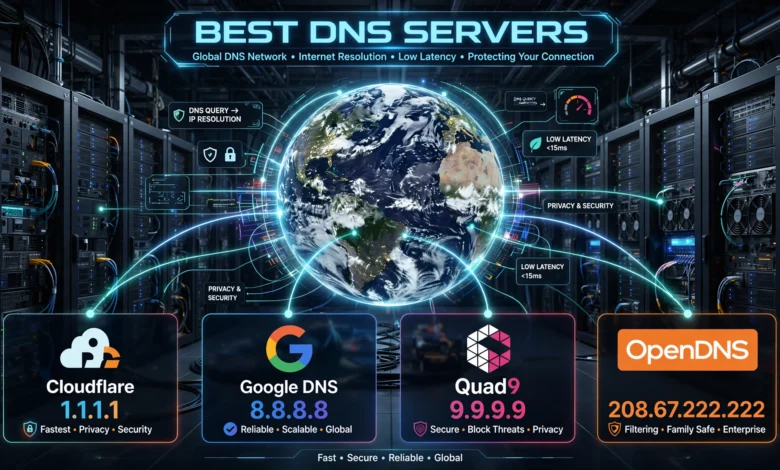
1. Cloudflare DNS (1.1.1.1)
Cloudflare’s 1.1.1.1 is consistently ranked among the fastest public DNS services in independent speed tests, largely because Cloudflare operates one of the largest content delivery networks in the world and can route requests to a nearby data center almost instantly. It’s also built with privacy as a selling point: Cloudflare has committed to not selling browsing data to advertisers and has its policy audited annually by an outside firm.
- Primary: 1.1.1.1
- Secondary: 1.0.0.1
- Malware-blocking version available at 1.1.1.2
Cloudflare also offers a free tool to check your current DNS speed against theirs, which is worth trying before you commit to switching. You can review the technical details on Cloudflare’s official 1.1.1.1 page.
2. Google Public DNS (8.8.8.8)
Google’s DNS service is one of the oldest and most widely used free resolvers. It’s known for strong reliability and consistent performance across most regions, since Google’s infrastructure spans data centers nearly everywhere. It doesn’t offer built-in ad or malware blocking, so it’s best suited for users who mainly care about speed and stability rather than extra filtering.
- Primary: 8.8.8.8
- Secondary: 8.8.4.4
Full setup instructions are available in Google’s Public DNS documentation.
3. Quad9 (9.9.9.9)
Quad9 is a nonprofit-run DNS service with a strong focus on security. It automatically blocks known malicious domains using threat intelligence feeds from multiple cybersecurity partners, which means phishing and malware sites are filtered out before your browser ever connects to them. It doesn’t log IP addresses tied to your queries, making it a solid pick for anyone prioritizing privacy alongside speed.
- Primary: 9.9.9.9
- Secondary: 149.112.112.112
4. OpenDNS
Owned by Cisco, OpenDNS has been around for well over a decade and offers both a free tier and paid business plans. The free version includes basic phishing protection, while the paid tiers add customizable content filtering, which makes it popular with families and small offices that want control over what sites are accessible on their network.
- Primary: 208.67.222.222
- Secondary: 208.67.220.220
5. Comodo Secure DNS
Comodo’s DNS service focuses heavily on blocking access to sites known for hosting malware, spyware, and phishing pages. It’s a good fit for users who want an extra layer of protection without installing separate antivirus software or browser extensions, though its speed tends to lag slightly behind Cloudflare and Google in most benchmarks.
- Primary: 8.26.56.26
- Secondary: 8.20.247.20
6. CleanBrowsing
CleanBrowsing is built around content filtering rather than raw speed, offering separate DNS addresses for family-friendly filtering, adult content blocking, and security-only filtering. It’s a practical option for households that want to restrict explicit content at the network level without configuring individual devices.
- Family Filter: 185.228.168.168
- Security Filter: 185.228.168.9
7. AdGuard DNS
AdGuard DNS blocks ads and trackers directly at the DNS level, which means fewer ads load across every app and browser on your network, not just the ones with an ad blocker installed. Pages often load noticeably faster simply because dozens of ad-related requests never happen in the first place.
- Default: 94.140.14.14
- Family protection: 94.140.14.15
8. NextDNS
NextDNS stands out for its customization. Instead of a one-size-fits-all resolver, it lets you build your own filtering profile, choosing exactly which categories of content, trackers, or ad networks to block. It also provides detailed logs of DNS activity on your account dashboard, which is useful if you want visibility into what your devices are actually requesting.
9. Control D
Control D is a newer entrant that combines strong speed with granular controls similar to NextDNS. It supports encrypted DNS protocols and lets users create custom rules per device, which makes it a strong choice for tech-savvy households managing several connected devices with different needs.
10. Verisign Public DNS
Verisign, the company that manages the .com and .net domain registries, runs a public DNS service with a stated commitment to never sell user data or inject ads into DNS error pages. It’s a stable, no-frills option for users who want reliability from a company with deep infrastructure experience.
- Primary: 64.6.64.6
- Secondary: 64.6.65.6
How to Choose the Best DNS Server for Your Needs
With this many solid options, picking one comes down to what you actually value most. Consider these points:
- If speed is your top priority, Cloudflare and Google are usually the fastest in independent benchmarks, though results vary by region.
- If security matters more than raw speed, Quad9 or Comodo Secure DNS offer built-in threat blocking.
- If you have kids at home, CleanBrowsing or OpenDNS’s family filtering options give you content controls without extra software.
- If you’re bothered by ads, AdGuard DNS cuts down on ad requests network-wide.
- If you want full control, NextDNS and Control D let you customize filtering rules device by device.
It’s worth running a quick speed comparison for your specific location, since DNS performance depends partly on how close a provider’s servers are to you. Tools like Cloudflare’s own speed test or independent sites like DNSPerf can show real numbers rather than general claims.
How to Change Your DNS Server
Switching DNS servers takes a few minutes and doesn’t require any special software. Here’s how to do it on the most common platforms.
On Windows
- Open Settings and go to Network & Internet
- Click your active connection (Wi-Fi or Ethernet), then select Edit next to DNS server assignment
- Choose Manual, turn on IPv4, and enter your preferred and alternate DNS addresses
- Save the changes and restart your browser
On Mac
- Open System Settings and click Network
- Select your active connection and click Details
- Go to the DNS tab and click the plus sign to add your chosen DNS addresses
- Click OK, then Apply
On Your Router
Changing DNS at the router level applies it to every device on your home network at once, which is usually more convenient than setting it up on each device individually.
- Log into your router’s admin panel, usually by typing its IP address (often 192.168.1.1) into a browser
- Look for a section labeled DNS, WAN, or Internet Settings
- Enter your preferred DNS server addresses in the primary and secondary fields
- Save and reboot the router if prompted
Common DNS Issues and How to Fix Them
Even with a fast DNS server set up, you might still run into occasional hiccups. A few common ones:
- Pages loading slowly despite a fast internet plan – try clearing your DNS cache or switching to a different provider from the list above
- A website won’t load on one device but works on another – the device may still be using a cached or outdated DNS entry; flushing the cache usually resolves this
- DNS errors after changing internet providers – your router may still be pointing to the old ISP’s DNS servers, so double-check your settings after any provider switch
- Inconsistent speed at different times of day – this can indicate your current DNS server is overloaded during peak hours, which is a good reason to try one of the higher-capacity providers like Cloudflare or Google
DNS Security: Why It Matters
Beyond speed, DNS is also a common target for attacks. DNS hijacking, cache poisoning, and man-in-the-middle attacks can redirect you to fake websites without any obvious warning sign in your browser. This is why several of the providers above, including Quad9 and Comodo, build in protection against known malicious domains as a default feature rather than an add-on.
Protocols like DNS-over-HTTPS (DoH) and DNS-over-TLS (DoT) add encryption to your DNS requests, which prevents your internet provider or anyone monitoring the network from seeing which sites you’re looking up. Most of the providers listed in this article, including Cloudflare, Google, and Quad9, support one or both of these encrypted protocols, and enabling them is usually a checkbox in your browser or operating system’s network settings.
Conclusion
Finding the best DNS servers for faster browsing doesn’t require technical expertise or any paid tools. Providers like Cloudflare, Google Public DNS, and Quad9 offer measurable improvements in speed and security over most default ISP settings, while options like CleanBrowsing, AdGuard DNS, and NextDNS add filtering and customization for households with specific needs.
The right choice depends on what you value most, whether that’s pure speed, stronger privacy, family-friendly filtering, or ad reduction, but switching takes only a few minutes on any device or router. Once it’s set up, you’ll likely notice pages opening a little quicker and fewer unexplained loading delays, all from changing one small, often-overlooked setting.