10 Proven Ways to Speed Up Your Internet Connection Fast
Frustrated with sluggish Wi-Fi? Here are 10 practical, tested fixes to speed up your internet connection today, no new plan required.
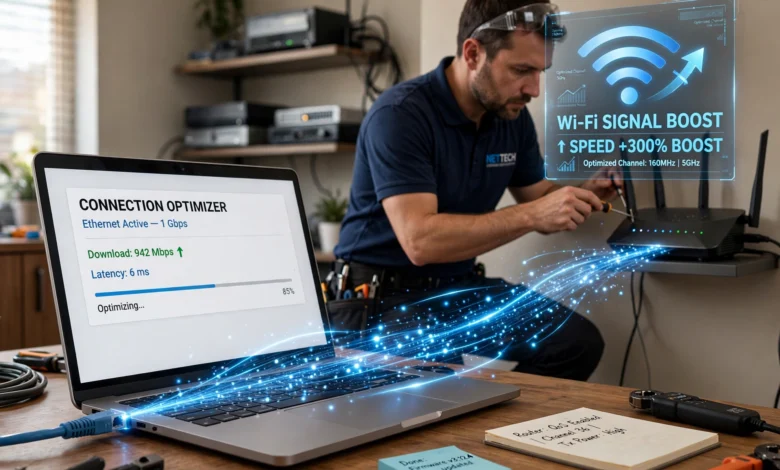
If you’ve ever watched a video buffer for the tenth time or waited on a page that just won’t load, you already know how disruptive a slow connection can be. The good news is that most people don’t actually need a faster internet plan to fix the problem. In many cases, the real culprits are things like router placement, outdated hardware, background apps eating up bandwidth, or a Wi-Fi channel that’s crowded with your neighbors’ devices.
To speed up your internet connection, you first need to understand what’s actually slowing it down, and that’s rarely just “the internet.”This guide walks through 10 practical, no-nonsense fixes that can make a real difference, from simple router tweaks to smarter equipment choices. Some of these take two minutes. Others might take an afternoon.
All of them are things you can do yourself, without calling a technician or upgrading your plan. Whether you’re working from home, streaming in 4K, or just tired of spinning loading icons, these steps will help you get closer to the speeds you’re actually paying for. Let’s get into it.
Why Is Your Internet So Slow in the First Place?
Before jumping into fixes, it helps to understand the common reasons connections slow down. Usually it’s one of these, or a combination of a few:
- Router placement — walls, metal objects, and distance all weaken your Wi-Fi signal
- Network congestion — too many devices competing for the same bandwidth
- Outdated equipment — an old router or modem that can’t handle modern speeds
- Background bandwidth use — auto-updates, cloud backups, and streaming apps running unnoticed
- ISP throttling or outages — sometimes the problem really is on your provider’s end
- Wi-Fi interference — other networks nearby using the same channel
Once you know which of these applies to you, fixing the issue becomes a lot more straightforward. Here’s where to start.
1. Run a Speed Test First
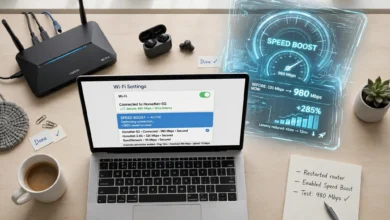
You can’t fix what you haven’t measured. Before making any changes, run a speed test to see your actual download speed, upload speed, and latency (ping). This gives you a baseline to compare against after each fix, so you know what’s actually working.
For the most accurate reading, connect your computer directly to the modem or router with an Ethernet cable and close any other apps or tabs that might be using bandwidth in the background. Then compare the result to the speed listed in your internet plan. If you’re paying for 200 Mbps but consistently getting 60, that’s a strong sign your issue isn’t your devices; it’s your setup or your provider.
Sites like <a href=”https://www.speedtest.net” target=”_blank” rel=”noopener”>Speedtest.net</a> are widely used and reliable for this kind of check.
2. Restart Your Router and Modem Regularly
It sounds almost too simple, but restarting your router is one of the most effective ways to speed up your internet connection. Routers accumulate temporary data, background processes, and minor glitches over time, and a restart clears all of that out.
Unplug the router for about 10 seconds before turning it back on. This gives it enough time to fully reset rather than just rebooting mid-process. If you can, get into the habit of doing this every week or two, or set up a smart plug to automate the restart on a schedule while you sleep.


3. Reposition Your Router for Better Coverage
Where you place your router matters more than most people realize. Wi-Fi signals weaken as they pass through walls, floors, and furniture, and they can be disrupted entirely by metal objects, mirrors, or appliances like microwaves.
A few placement tips that make a noticeable difference:
- Put the router in a central location in your home, not tucked in a corner
- Keep it elevated, off the floor, and away from walls when possible
- Avoid placing it near microwaves, baby monitors, or cordless phones, which can interfere with the signal
- Point the antennas vertically for the best horizontal spread
If your home has dead zones no matter where you place the router, that’s usually a coverage problem rather than a speed problem, and it’s worth addressing separately with a mesh system (more on that below).
4. Switch to the Right Wi-Fi Band
Most modern routers broadcast on two frequency bands: 2.4 GHz and 5 GHz. Each has trade-offs, and picking the right one for the task can noticeably speed up your internet connection.
2.4 GHz band:
- Longer range, better at passing through walls
- Slower maximum speeds
- More prone to interference from other household devices
5 GHz band:
- Much faster speeds
- Shorter range and weaker wall penetration
- Better suited for streaming, gaming, and video calls
If you’re near your router, switch to the 5 GHz network for demanding tasks. For devices further away or ones that don’t need much bandwidth, like smart speakers or thermostats, the 2.4 GHz band is usually sufficient and frees up the faster band for what actually needs it.
5. Change Your Wi-Fi Channel to Reduce Congestion
If you live in an apartment building or a densely packed neighborhood, chances are dozens of nearby routers are broadcasting on the same Wi-Fi channel as yours. That overlap creates congestion, similar to too many cars merging onto one lane of traffic.
Most routers let you manually change the channel through their admin settings, usually accessible by typing the router’s IP address into a browser. Switching to a less crowded channel, or setting the router to auto-select the best one, can meaningfully reduce interference and improve your connection’s consistency.
6. Use an Ethernet Cable When You Can
Wi-Fi is convenient, but it’s inherently less stable and slower than a wired connection. If you’re working from home, gaming, or attending video calls, plugging directly into your router with an Ethernet cable eliminates wireless interference entirely and gives you the fastest, most reliable connection your plan can offer.
This is especially useful for troubleshooting too. If your wired speed is fast but your Wi-Fi speed is slow, you know the issue is with your wireless network specifically, not your internet plan or provider.
7. Limit Devices and Background Bandwidth Use
Every device connected to your network shares the available bandwidth, and it adds up faster than you’d expect. Smart TVs, phones, laptops, gaming consoles, and even smart home gadgets are all pulling from the same pool.
A few things worth checking:
- Auto-updates on apps, consoles, and computers can quietly consume large amounts of bandwidth
- Cloud backups (like automatic photo uploads) often run in the background without you noticing
- Streaming apps left open even when you’re not watching still use data
- Unused devices connected to your network are still occupying a connection slot
Disconnecting devices you’re not using, scheduling updates for overnight hours, and closing unused browser tabs are all simple ways to free up bandwidth for what matters right now.
8. Secure Your Network Against Unwanted Users
If your Wi-Fi password is weak or hasn’t been changed in years, it’s possible that someone outside your household is quietly using your connection. Even a single unauthorized device can eat into your available bandwidth.
To fix this:
- Set a strong, unique Wi-Fi password
- Enable WPA3 encryption if your router supports it (WPA2 is the minimum acceptable standard)
- Periodically review the list of connected devices in your router’s admin panel
- Change your password occasionally to force a fresh login for all devices
This isn’t just about speed; it’s also a basic security practice that protects your personal data from unwanted access.
9. Update Your Router’s Firmware and Your Device Drivers
Outdated firmware is one of the most overlooked reasons a network underperforms. Router manufacturers regularly release updates that fix bugs, patch security vulnerabilities, and sometimes improve performance directly.
Check your router’s admin settings for a firmware update option, or download the manufacturer’s app if it has one. While you’re at it, make sure your computer’s network drivers are current too, since outdated drivers can cause slowdowns that have nothing to do with your internet plan at all.
10. Upgrade Your Equipment or Your Plan
Sometimes the honest answer is that your hardware simply can’t keep up anymore. If your router is more than four or five years old, it may not support the speeds your current internet plan offers, no matter how well you optimize everything else.
Consider these upgrade paths depending on your situation:
- New router: If yours is old or was provided by your ISP as a basic model, a newer Wi-Fi 6 router can handle more devices and higher speeds
- Mesh Wi-Fi system: Ideal for larger homes with dead zones, since it uses multiple access points instead of relying on a single router
- Wi-Fi extender: A cheaper option than mesh, useful for extending coverage to one or two problem areas
- Upgraded internet plan: If you’ve optimized everything and you’re still maxing out your bandwidth regularly (multiple 4K streams, large households, heavy remote work), it may genuinely be time for more speed from your provider
Before spending money, it’s worth checking your ISP’s coverage and plan options for your address, since availability varies significantly by location. The <a href=”https://www.fcc.gov/consumers/guides/broadband-speed-guide” target=”_blank” rel=”noopener”>FCC’s broadband speed guide</a> is a useful reference for understanding what speed tier actually fits your household’s needs.
How to Know Which Fix Actually Worked
Once you start making changes, it’s tempting to do everything at once. Resist that urge. Test your speed after each individual change, ideally at the same time of day, so you can tell what actually made a difference rather than guessing.
A simple approach:
- Run a baseline speed test
- Make one change (e.g., reposition the router)
- Wait a few minutes, then test again
- Record the result before moving to the next fix
This method takes a little longer, but it saves you from spending money on upgrades you may not have needed in the first place.
Final Thoughts
A slow connection is frustrating, but it’s rarely unfixable. Most of the time, the fix is something small: a router in the wrong spot, too many devices competing for bandwidth, or firmware that hasn’t been updated in years.
Working through the steps above, starting with a speed test and ending with equipment upgrades if needed, will help you speed up your internet connection without necessarily paying for a more expensive plan. Start with the easy fixes first, test as you go, and you’ll likely find the slowdown was more manageable than it seemed.