How to Increase Internet Speed: 15 Proven Methods That Work
Boost your internet speed connection with 15 proven methods. Optimize your router, fix Wi-Fi issues, and enjoy faster browsing. Complete guide.

Frustrated with slow internet speeds destroying your productivity? You’re not alone. Millions of users struggle with sluggish connections that make streaming, gaming, and video conferencing practically unbearable. The good news? Most speed issues can be resolved without calling your internet service provider. Whether you’re experiencing buffering Netflix sessions, freezing Zoom calls, or pages that take forever to load, we’ve compiled fifteen actionable strategies to boost internet speed effectively.
This comprehensive guide explores both simple fixes you can implement today and advanced optimization techniques for tech-savvy users. Many Internet Speed problems stem from poor router placement, outdated equipment, or network congestion—issues entirely within your control. You don’t need expensive upgrades or technical expertise to unlock faster performance. Some methods are completely free, requiring only a few minutes of your time, while others involve minimal investment that pays dividends in an improved browsing experience.
Understanding the factors that impact download speeds and overall network performance is crucial. From physical barriers like walls to electronic interference and bandwidth-hungry background applications, numerous culprits can throttle your internet connection. This article breaks down each factor systematically, providing clear solutions for every situation. Whether your home network struggles with dead zones, your devices can’t connect reliably, or you simply want to maximize the fastest Internet Speed your ISP provides, these proven methods deliver real results. Start with quick fixes if you’re in a hurry, or work through all fifteen methods for comprehensive optimization of your broadband performance.
1. Test Your Current Internet Speed First
Before attempting any optimizations, determine your actual internet speed baseline. Your ISP advertises “up to” speeds, but real-world performance varies throughout the day depending on network congestion and other factors. Use legitimate speed testing tools like Ookla Speedtest or OpenSignal to measure your download and upload speeds accurately.
Log in to your internet provider’s account to verify the promised speeds for your plan. Compare these numbers against your test results to identify if you’re actually receiving the service you’re paying for. Run multiple tests throughout different times of day—morning, afternoon, and evening—to understand usage patterns. This baseline measurement enables you to track improvements as you implement optimization strategies, providing concrete proof of what works. Document your starting speeds before making any changes to accurately measure the impact of each adjustment.
2. Restart Your Modem and Router Properly
One of the most overlooked yet highly effective solutions is the power cycle reset. Your modem connects your network to the ISP’s infrastructure, while your router distributes that connection throughout your home. Over time, both devices accumulate temporary glitches and memory issues that degrade wireless performance.
Restart your modem first by unplugging the power cable from the wall outlet. Wait 30-60 seconds—this allows capacitors to fully discharge and resets the device completely. Plug the power cable back in and wait for all indicator lights to stabilize, usually 2-3 minutes. Next, unplug your router using the same method. Wait 30 seconds, then reconnect it. This proper restart sequence often clears routing errors and refreshes network memory, resulting in noticeably faster Internet Speed. Many users should perform this monthly maintenance, or even weekly if experiencing frequent slowdowns.
3. Optimize Your Router Placement
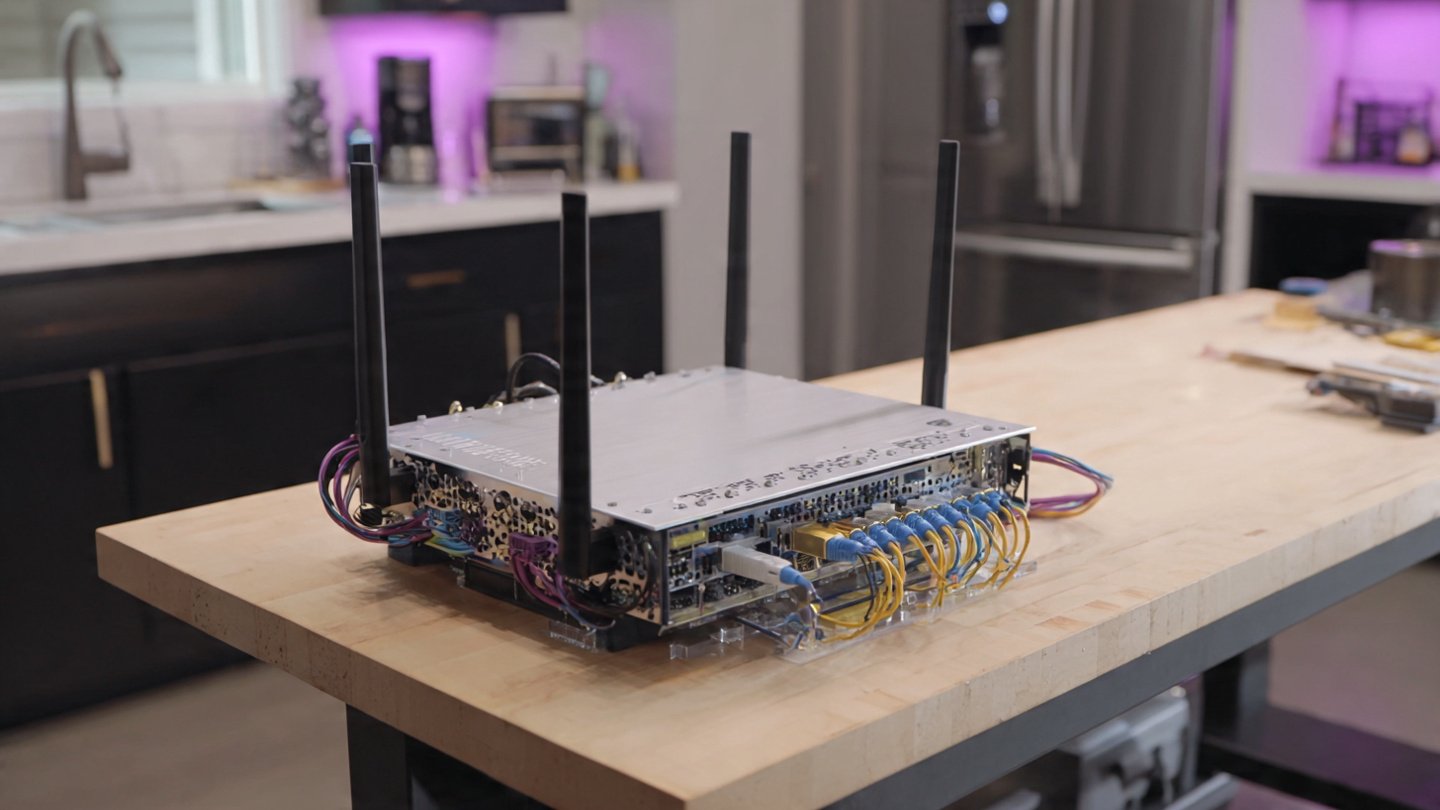
Physical location dramatically affects Wi-Fi signal strength and coverage. Wi-Fi signals radiate omnidirectionally from your router’s antenna, so central placement maximizes reach throughout your home. Position your router in a high, open location—ideally on a shelf or wall-mounted in the middle of your house, away from the floor, corners, or closets.
Avoid placing your wireless router near thick concrete walls, metal appliances, microwaves, baby monitors, or Bluetooth devices that cause interference. Distance matters too; the farther your devices are from the router, the weaker the signal becomes. Elevating the router above furniture and obstacles allows signals to penetrate walls more effectively. If multi-story homes are your situation, positioning the router on an upper floor provides better coverage throughout the entire dwelling. Even small repositioning can yield dramatic improvements in signal strength and overall network performance.


4. Switch to the 5GHz Wi-Fi Band
Most routers broadcast on both 2.4GHz and 5GHz frequencies. The 2.4GHz band offers longer range but suffers from congestion and interference since it’s crowded with devices—cordless phones, microwaves, baby monitors, and neighbor routers all use this frequency. The 5GHz band provides significantly faster Internet Speed but has a shorter range and penetrates walls less effectively.
For devices located close to your router, switching to the 5GHz frequency dramatically improves internet speed. This band features more non-overlapping channels and less electronic interference, resulting in clearer, faster data transmission. Check your router settings to see if you can manually select or prioritize the 5GHz network. Some modern routers enable both frequencies simultaneously, appearing as separate network names in your Wi-Fi list. Experiment with band switching to find the optimal balance between speed and coverage for your specific layout.
5. Change Your Wi-Fi Channel to Reduce Interference
By default, most routers operate on channel 6, creating congestion when neighboring routers use the same channel. The 2.4GHz band has 14 overlapping channels; 5GHz offers 23 non-overlapping channels. Changing to a less-crowded channel can significantly boost broadband speeds.
Use Wi-Fi analysis tools like Wi-Fi Analyzer or Wi-Fi Scanner to identify which channels in your area are least congested. Log in to your router settings and manually select a clearer channel. For 2.4GHz, channels 1, 6, and 11 don’t overlap—try switching if your current channel shows high usage. For 5GHz, numerous non-overlapping channels exist, so you have more flexibility. Testing different channels takes only minutes but often delivers noticeable connection improvements. Some routers feature automatic channel selection; verify whether this is enabled and functioning properly.
6. Update Your Router Firmware Regularly
Router firmware functions as the device’s operating system, controlling functionality and security. Manufacturers continuously release firmware updates fixing bugs, improving performance, and patching security vulnerabilities that degrade Internet Speed.
Access your router’s admin interface through its web portal or mobile app to check your current firmware version. Compare it against the latest available version on the manufacturer’s website. Many modern routers support automatic updates; verify this feature is enabled. When manually updating, always use an Ethernet cable connection rather than Wi-Fi, as updating over wireless can corrupt the installation. After updating the firmware, restart your router to activate the improvements. Regular firmware maintenance ensures your Wi-Fi router operates at peak efficiency and maintains compatibility with newer devices.
7. Use Ethernet Cables for Wired Connections
For stationary devices requiring maximum speed and reliability, nothing beats wired connections. Ethernet cables provide direct, uninterrupted paths between devices and your router, eliminating wireless signal degradation and interference issues. Wired speeds are invariably faster and more stable than wireless alternatives.
Upgrade to Cat6 or Cat6a cables if you have gigabit internet speeds; older Cat5 cables max out at 100 Mbps. Ensure cables are short, properly bent, and of good quality for optimal performance. Connect gaming consoles, desktop computers, streaming devices, and other stationary equipment directly to your router via Ethernet. You’ll immediately notice dramatically improved responsiveness, lower latency, and faster downloads. This simple upgrade often costs under $20 but delivers the single most impactful Internet Speed boost possible. For devices in locations far from your router where running cables isn’t practical, consider powerline adapters as an alternative wired solution.
8. Remove Unnecessary Connected Devices
Every device connected to your Wi-Fi network consumes bandwidth, whether actively transmitting or sitting idle. Too many simultaneous connections create congestion, throttling speeds for everyone. Most routers support 20-200 devices, but real-world performance suffers when too many connect simultaneously.
Disconnect devices you’re not currently using—old tablets, smartphones, smartwatches, and guest devices all compete for limited bandwidth. Log in to your router settings to review connected devices and remove unfamiliar ones, as neighbors’ equipment might be using your network. During gaming or streaming sessions requiring peak internet speed, disconnect unnecessary devices temporarily. Prioritize active needs; fewer connections mean each device receives greater bandwidth allocation. This free optimization often dramatically improves connection performance without any equipment changes.
9. Clear Your Browser Cache and Temporary Files

Accumulated cached data, cookies, and temporary files slow down browsing and website loading significantly. Your browser stores vast amounts of data locally for faster access, but eventually this congestion causes performance degradation. Regular cache clearing resolves loading delays and improves responsiveness.
In Chrome, Internet Speed, click the three-dot menu, select “More Tools,” then “Clear Browsing Data.” Check boxes for browsing history, cookies, site data, and cached images/files. Select “All Time” to comprehensively purge accumulated data. Perform similar cache clearing in Firefox, Safari, or Edge, following each browser’s specific instructions. Clear the cache monthly for optimal Internet Speed. Beyond browser cache, delete unnecessary files from your computer’s temporary folder. These simple maintenance tasks cost nothing and often produce noticeable improvements in perceived internet speed and page loading performance.
10. Close Background Applications and Programs
Unnecessary background programs silently consume bandwidth and system resources, throttling internet speeds significantly. Cloud backup services, auto-updating apps, social media platforms, and file synchronization tools all compete for bandwidth without user awareness. Identifying and closing these bandwidth hogs immediately frees resources for active browsing.
Check your system’s activity monitor or task manager to identify resource-hungry processes. Close unused applications, disable auto-updating temporarily, and pause cloud synchronization services. On smartphones, close background app refresh for unused applications. On computers, disable startup programs you don’t need running constantly. This free optimization can improve Internet Speed by 20-30% in many situations. Periodically review running processes to prevent new resource-consuming applications from silently degrading performance.
11. Enable Quality of Service (QoS) Settings
Quality of Service functions allow you to prioritize specific applications and devices for bandwidth allocation. Rather than bandwidth being divided equally among all connections, QoS lets you ensure critical applications like video conferencing receive priority while deprioritizing downloads.
Access your router settings and locate QoS or traffic prioritization features. Configure settings to prioritize video calls for users working remotely, gaming applications for prioritized devices, or streaming services. During peak usage times when multiple family members compete for bandwidth, QoS prevents one activity from monopolizing resources. This intelligent bandwidth management ensures smooth performance for priority activities while maintaining acceptable speeds for secondary uses. Configuring QoS requires only minutes and costs nothing, yet delivers significant network performance improvements for households with multiple simultaneous users.
12. Update Your Router and Modem Firmware
Outdated router and modem equipment fundamentally limit internet speed. Modems and routers have maximum technological capabilities; older hardware simply cannot support newer, faster broadband standards. Upgrading older equipment to modern models supporting Wi-Fi 6 (802.11ax) or newer standards delivers dramatic improvements.
If your router or modem is more than 3-5 years old, upgrading should be a priority. Modern Wi-Fi 6 routers deliver speeds nearly 3x faster than older Wi-Fi 5 standards, feature dual-band or tri-band capabilities, and handle multiple connected devices more efficiently. Ask your ISP about newer modems supporting the latest standards; sometimes providers replace equipment for free or minimal cost. Check whether you’re leasing equipment from your ISP—often purchasing your own modem saves monthly rental fees. When considering upgrades, ensure your internet plan speed justifies the investment; upgrading equipment won’t exceed your plan’s maximum speeds.
13. Adjust Router Antenna Positioning
Router antennas aren’t merely decorative—their positioning dramatically affects wireless signal coverage and strength throughout your home. Most consumer routers have multiple external antennas; optimal positioning requires experimentation based on your specific layout. Wi-Fi signals transmit perpendicular to antenna orientation.
Position one antenna vertically to spread signals horizontally across your floor for single-story homes. In multi-story houses, angle additional antennas horizontally so signals travel vertically upper and lower floors. This mixed-angle approach creates overlapping coverage patterns reaching more areas than uniform orientation. After repositioning, test signal strength in different rooms and further adjust as needed. This completely free optimization often yields surprising improvements in weak areas and overall coverage without any equipment investment.
14. Implement DNS Optimization
Domain Name System (DNS) servers translate website addresses into IP addresses; slower DNS servers delay website loading even with fast internet connections. Most users default to their ISP’s DNS servers, which may be slow or congested. Switching to faster public DNS services accelerates website resolution.
Consider using Cloudflare’s 1.1.1.1, Google’s 8.8.8.8, or Quad9’s 9.9.9.9 DNS services. Access your router or individual device settings to manually specify alternative DNS servers. While DNS optimization won’t increase actual download speeds, it dramatically improves perceived internet speed by accelerating website loading. Changes take effect immediately; test the website loading speed after switching DNS. This free optimization requires only basic technical knowledge but delivers tangible improvements for general browsing.
15. Perform Full Malware Scans and Security Checks
Malware infections silently hijack bandwidth, consuming resources for malicious activities without the user’s knowledge. Even subtle infections degrade connection performance by diverting resources. Running comprehensive security scans removes threats and restores full performance.
Use reputable antivirus software to perform full system scans, paying special attention to identifying potentially unwanted programs (PUPs) and browser toolbars. Remove detected threats completely. Beyond antivirus, ensure your Wi-Fi network is secured with a strong WPA2 password, preventing unauthorized access. Unsecured networks allow neighbors or strangers to consume your bandwidth. Verify that only legitimate devices are connected to your network. These security measures protect both your internet speeds and personal data from threats. Regular security maintenance—monthly scans or quarterly deep checks—prevents degradation from accumulating infections.
More Read: VPN Services Explained: Privacy, Security, and Streaming Benefits
Conclusion
Achieving faster internet speeds requires addressing multiple factors systematically. From simple fixes like restarting equipment and optimizing router placement to more technical adjustments like firmware updates and DNS configuration, the fifteen methods outlined above provide comprehensive solutions for virtually any slow-Internet-speed situation. Most improvements cost nothing—only your time and attention. Start with quick fixes, then progressively implement more advanced optimizations.
Test your internet speed throughout the process to measure results objectively. Remember that your actual maximum Internet Speed cannot exceed your ISP plan’s limitations; if you’ve optimized everything possible and still underperform, contact your provider or consider upgrading your service tier. Many users discover that small environmental adjustments and configuration tweaks unlock previously untapped broadband performance, delivering the fast, reliable internet connection they’ve been craving without expensive equipment replacements or service upgrades.