Solid State vs Hard Drive: Which Is Better?
Solid state vs hard drive — which should you buy? Compare speed, price, durability, and storage to make the smartest choice for your PC or laptop in 2026.
Solid state vs hard drive is one of the most searched questions in the PC storage world, and for good reason. Whether you are building a new computer, upgrading an aging laptop, or setting up a home server, the storage drive you pick will shape your experience every single day. It affects how fast your system boots, how quickly your apps load, how long your battery lasts, and even how safe your data is if you drop your machine.
For years, the hard disk drive (HDD) was the only option most people had. It was affordable, roomy, and got the job done. Then solid state drives (SSDs) arrived, changed the game completely, and suddenly the conversation got a lot more interesting.
But here is the thing: neither drive is universally “better.” Each one has real strengths and genuine trade-offs. A video editor storing hundreds of terabytes of raw footage has very different needs than a student running Windows and a few apps. A gamer who wants lightning-fast load times is thinking about this differently than someone who just needs reliable cloud backup.
This guide breaks down every major difference between SSDs and HDDs — speed, price, durability, lifespan, and use cases — so you can walk away knowing exactly which one belongs in your setup. No fluff, no vague comparisons, just clear answers.
What Is a Solid State Drive (SSD)?
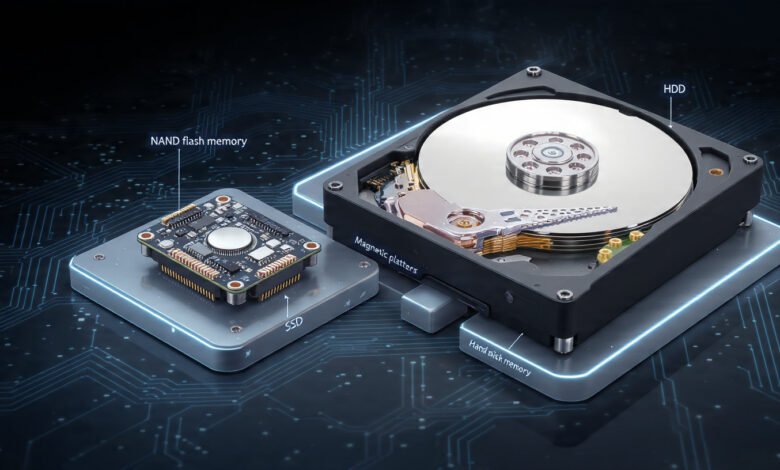
A solid state drive is a storage device that holds data on NAND flash memory chips. Unlike its older counterpart, it has zero moving parts. Data is stored electrically in memory cells, and the drive’s controller reads and writes that data almost instantaneously.
SSDs use flash-based memory to store data and have no moving parts. They offer faster read/write speeds than HDDs, lower access times (less latency), and a higher cost per gigabyte of storage.
Types of SSDs You Will Encounter
- SATA SSD — Uses the same connector as a traditional hard drive. It is the most common entry-level SSD type and a popular upgrade for older machines.
- NVMe SSD (M.2) — Connects directly to the motherboard’s PCIe lanes. NVMe is a newer protocol that allows direct connection to the motherboard’s PCIe lanes, providing higher throughput and lower latency. PCIe 4.0 drives can reach speeds that are roughly double those of PCIe 3.0.
- PCIe SSD — Found in high-performance workstations and enterprise environments. These are the fastest consumer drives available today.
The most important takeaway here is that SSD technology is built around speed and reliability at the hardware level, not as a bonus feature.
What Is a Hard Disk Drive (HDD)?
A hard disk drive is a mechanical storage device that uses spinning magnetic platters and a moving read/write head to access data. Inside an HDD device, there are spinning platters with magnetic coatings. Each platter has tracks or concentric circles on it called segments. A motor spins an internal actuator arm with a read/write head, which records and retrieves information by reading the charge on particular segments.
This is essentially the same core technology that has been used in computers since the 1950s, though it has improved dramatically over the decades. The spindle speed, measured in RPM (revolutions per minute), is the biggest factor in how fast a hard drive can access your data.
Common HDD Speeds
- 5,400 RPM — Found in budget laptops and external backup drives. Slower but quieter and more power-efficient.
- 7,200 RPM — The standard for desktop hard drives and performance laptops. A good balance of speed and cost.
- 10,000–15,000 RPM — Enterprise-grade drives used in servers and data centers.
The mechanical nature of an HDD is both its defining characteristic and its biggest limitation. Every time your computer needs a file, the arm physically moves across the platter. That physical movement creates latency, noise, heat, and a potential failure point.


Solid State vs Hard Drive: Speed Comparison
If you are buying a new drive primarily for performance, this is where solid state vs hard drive differences become impossible to ignore.
The fastest commercially available HDDs offer speeds of around 160 MB/s, while even an entry-level SSD will typically be over three times faster. Many SATA drives easily deliver over 500 MB/s read and write speeds. Top-performing NVMe drives can reach speeds up to 7,000 MB/s.
To put that in real-world terms:
| Task | HDD (7,200 RPM) | SATA SSD | NVMe SSD |
|---|---|---|---|
| Windows Boot Time | 30–90 seconds | 10–15 seconds | 5–10 seconds |
| Game Load Time | 30–60 seconds | 5–15 seconds | 2–8 seconds |
| Large File Transfer (10GB) | 60–100 seconds | 15–20 seconds | 3–7 seconds |
| Application Launch | Slow, noticeable lag | Near-instant | Instant |
Why Does SSD Speed Matter for Everyday Use?
The speed gap is not just about benchmarks. SSDs are all about little data transactions that happen all the time as your operating system is running. When a background task is performed, an instant message comes through, or a program launches, it requires access to a ton of small files located all over the place. Free from the need to physically move across disc surfaces, SSDs can reach desired pieces of information instantly, offering exceptional performance for computing that requires multitasking.
In practical terms, that means your entire PC feels faster with an SSD, not just tasks that involve big file transfers.
Winner: SSD — by a very wide margin.
Solid State vs Hard Drive: Storage Capacity and Price
This is where the hard disk drive still holds a meaningful advantage in 2026.
Even though the price of SSDs has dropped dramatically over time, the cheapest 1 TB internal 2.5-inch solid state device will cost about $100, while a hard drive of the same capacity and form factor can be bought for around $40. That gap narrows as you move to higher-capacity drives, but the cost per gigabyte of an HDD remains significantly lower across the board.
For enterprise users, the difference is even starker. Industry research shows that enterprise SSDs carry a premium of 7.4x to 9.9x over capacity enterprise HDDs, with this gap projected to remain above 5x through 2028.
What This Means for Consumers
If you need to store:
- A large video editing archive (multiple terabytes of raw footage)
- A full media library of movies, music, and photos
- Long-term system backups
- Bulk cold storage that you rarely access
…then an HDD gives you far more room for far less money. There is no shame in using a hard drive for this type of storage. It is the smarter financial choice.
The Dual-Drive Solution
Many savvy PC builders do not choose between the two at all. For the best of both worlds, consider a dual-drive setup with an SSD for your operating system and frequently used applications, and an HDD for bulk storage. This approach is extremely common in desktop builds and gives you the best of both worlds: fast performance where it matters and cheap, high-capacity storage where speed is less critical.
Winner: HDD — for capacity and value per gigabyte.
Solid State vs Hard Drive: Durability and Reliability
Physical Durability
Since an SSD doesn’t have moving parts, they can maintain a lower temperature with much higher performance. An SSD is also better suited to handle drops, shakes, shocks, and everyday wear and tear, making them less likely to experience data loss.
This is a big deal for laptop users. If you drop your laptop while your HDD’s read/write head is in motion — which it almost always is — you risk scratching the platter and losing data permanently. Drop an SSD-equipped laptop, and there is basically nothing to break internally.
For anyone who travels frequently or works in a physically demanding environment, the durability advantage of an SSD is not just a spec sheet footnote. It is a practical, daily benefit.
Long-Term Reliability and Lifespan
Here is where things get more nuanced. The endurance of an SSD, measured in P/E (program/erase) cycles, varies depending on the technology, but typically falls somewhere between 500 and 100,000 P/E cycles. Every time data is written and erased from a memory cell, it degrades slightly. This is called write wear, and it is the primary way SSDs fail over time.
HDDs, by contrast, can theoretically be written to indefinitely — though their mechanical parts will wear out from physical use. A hard drive’s spinning platters and actuator arm eventually fail, just through the physics of constant motion.
For most components, an HDD may have a mean time between failures of 300,000 hours, while an SSD might have 1.5 million hours. Statistically, modern SSDs are actually more reliable, but write-intensive workloads can shorten SSD lifespan faster than a comparable HDD workload would.
Data Recovery
One final point worth knowing: if an HDD fails mechanically, professional data recovery services can often retrieve your files by rebuilding or replacing the mechanical components. If an SSD fails, especially due to a controller issue or complete cell exhaustion, data recovery is considerably harder and more expensive.
Winner: SSD for physical durability; roughly even on long-term reliability with edge cases favoring each type.
Solid State vs Hard Drive: Power Consumption and Noise
SSDs require less power, which translates into better battery life. While lower-priced laptops can still come with traditional cheaper hard drives, most mid-range to high-end machines now come with an SSD.
The difference in power consumption is especially noticeable in laptops. Hard drives spin continuously, drawing power even when you are not actively reading or writing data. SSDs, with no motor to run, consume power almost exclusively during active data operations.
In terms of noise, there is simply no comparison. An HDD produces an audible hum from the spinning platters and a clicking sound when the actuator arm moves. SSDs are completely silent. If you work in a quiet environment or value a clean, quiet build, an SSD is the obvious choice.
For desktop users, the power savings are smaller in absolute terms, but still add up over months and years of use. While hard drives aren’t the biggest power hogs in your computer, no one can complain about saving extra power.
Winner: SSD — quieter and more energy-efficient with no trade-offs.
Solid State vs Hard Drive: Form Factor and Compatibility
SSDs come in more form factors, which matters when you are building a compact PC or upgrading a thin laptop:
- 2.5-inch SATA — Compatible with most systems that have an HDD slot; easy drop-in replacement
- M.2 2280 — The slim, stick-shaped module that fits directly on the motherboard; used in most modern laptops and desktops
- PCIe add-in card — Used in high-end desktop workstations for maximum throughput
- U.2 — Enterprise form factor for data centers
HDDs primarily come in two sizes:
- 3.5-inch — Desktop drives with higher capacities
- 2.5-inch — Laptop drives, also used in external enclosures
This flexibility in SSD form factors means that modern thin-and-light laptops, mini-PCs, and compact desktops can achieve storage performance that simply was not possible with mechanical drives. You can learn more about how SSD architecture works and how to choose the right drive type by checking Kingston Technology’s detailed SSD resource guide.
Winner: SSD — significantly more versatile.
Solid State vs Hard Drive: Which Is Better for Specific Use Cases?
The honest answer to the solid state vs hard drive debate is that the right answer depends entirely on what you are doing. Here is a practical breakdown:
Gaming
SSDs win here, and it is not close. Faster load times, quicker level transitions, and snappier game launcher performance all make an NVMe SSD the right choice for a gaming PC. That said, once you’re inside a game and the assets are loaded, the actual frame rate and gameplay experience are almost entirely governed by your CPU and GPU — not your storage drive.
A popular and cost-effective setup: install your OS and favorite games on a 1TB NVMe SSD, and add a 2–4TB HDD for your larger game library and media.
Video Editing and Creative Work
Active project files benefit enormously from SSD speed — faster read/write speeds mean smoother scrubbing through 4K footage and faster renders. Archive storage of completed projects is perfectly suited for a high-capacity HDD. This is exactly why professional editors almost always use a dual-drive workflow.
General Use and Productivity
For everyday computing — browsing, documents, spreadsheets, streaming — even a mid-range SATA SSD transforms the experience of using a computer. The system feels faster, multitasking is smoother, and startup is nearly instant. This is one upgrade that pays off immediately and visibly.
Long-Term Backup and Cold Storage
HDDs are the clear winner for cheap, high-capacity backup storage. If your main goal is archiving large amounts of data you access occasionally, spend less on a quality HDD and use the savings elsewhere.
Server and Enterprise Environments
SSDs are a better choice for data analytics or gaming workloads. On the other hand, an HDD is a better choice if you are dealing with data backups, data archives, or throughput-intensive workloads. Enterprise environments typically deploy both, using SSDs for high-performance workloads and HDDs for deep storage tiers.
For a deeper technical look at how both storage types perform across enterprise workloads, AWS’s comparison of SSD vs HDD storage is a well-sourced reference worth reviewing.
Solid State vs Hard Drive: Side-by-Side Summary
| Feature | SSD | HDD |
|---|---|---|
| Speed | Up to 7,000 MB/s (NVMe) | Up to 160 MB/s |
| Price per GB | Higher | Lower |
| Max Consumer Capacity | 8TB (rare, expensive) | 20TB+ (affordable) |
| Durability | Excellent (no moving parts) | Vulnerable to drops/shocks |
| Noise | Silent | Audible |
| Power Consumption | Low | Higher |
| Boot Time | 5–15 seconds | 30–90 seconds |
| Lifespan | MTBF ~1.5M hours | MTBF ~300K hours |
| Data Recovery | Harder | Easier |
| Form Factor Flexibility | High | Limited |
Should You Choose an SSD, HDD, or Both?
Here is a simple way to decide:
- You want the fastest, most responsive system possible → Go with an NVMe SSD. Do not compromise on this.
- You are on a tight budget and need lots of storage → Go with a high-capacity HDD. It will get the job done.
- You want performance AND storage capacity → Use both. Install your OS and active software on an SSD. Store your files, media, and backups on an HDD.
- You have a laptop that currently has an HDD → Swapping it for a SATA SSD is one of the most affordable and impactful upgrades you can make. Your machine will feel years newer.
- You are doing creative work professionally → Use an NVMe SSD for active projects and a large HDD for archives.
The solid state drive has won the performance argument decisively. But the hard disk drive is not dead — it is just been reassigned to the role it does best: cheap, high-volume storage.
Conclusion
The solid state vs hard drive debate comes down to one core trade-off: performance versus price per gigabyte. SSDs are faster, quieter, more durable, more energy-efficient, and better suited for the demands of modern computing — making them the right choice for your operating system, active applications, and games. HDDs, on the other hand, remain the most cost-effective solution for large-scale storage, archiving, and backup use cases where raw capacity matters more than speed.
For most users, the smartest setup in 2026 is not choosing one over the other, but pairing a fast NVMe SSD for day-to-day performance with a high-capacity HDD for bulk storage — giving you the responsiveness of solid state technology at the price efficiency that only a hard disk can offer.